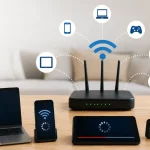
Weak video streaming is not always a sign that your internet plan is too slow. Buffering can also come from poor Wi-Fi coverage, network congestion, an overloaded streaming device, or a router placed where its signal struggles to reach you.
Before paying for faster service, identify where the connection is actually breaking down.
Separate Internet Speed From Wi-Fi Trouble
Run a speed test near the router and compare it with the same test where you normally stream. A large difference suggests the wireless connection may be the bigger problem.
Also test another device. People troubleshooting technology often compare general online reading with equipment documentation, but a few controlled tests can reveal whether one device, one room, or the entire connection is affected.
Watch the Timing of Buffering
Streaming that fails mostly during busy evening hours may point toward network congestion. Problems isolated to one television could instead involve its Wi-Fi receiver, software, or location.
Changing one variable at a time prevents random troubleshooting.
Give the Router a Better Position
Routers usually perform better when they are elevated, reasonably central, and not hidden inside a cabinet. Thick walls, metal objects, large appliances, and long distances can weaken wireless performance.
Before buying additional hardware based on digital media articles or advertisements, move the existing router temporarily and test the stream again. A simple placement change costs nothing and can expose a coverage problem quickly.
| Streaming Problem | Possible Cause | First Test |
|---|---|---|
| Buffering in one room | Weak Wi-Fi | Move closer to router |
| All devices slow | Connection issue | Test wired speed |
| Evening slowdown | Network congestion | Test at another time |
| One device struggles | Device-specific issue | Try another device |
Reduce Competition on the Network
Large downloads, cloud backups, game updates, security-camera uploads, and multiple high-resolution streams can compete for available bandwidth.
Pause heavy transfers and retest. During setup research, online technical reading can sit alongside manufacturer instructions, but your own network activity often provides the fastest clue.
Restart and Update Before Replacing Hardware
A normal restart can clear temporary router or device problems. Check whether the router, streaming device, and streaming application also have pending software updates.
If an older router repeatedly needs restarting or cannot provide reliable coverage across your home, replacement may become more reasonable.
Consider Ethernet, Mesh, or an Access Point
A wired Ethernet connection removes many Wi-Fi variables and can be useful for a stationary television, console, or streaming box. If wiring is practical, it is a strong diagnostic test even if you do not keep the cable permanently.
Larger homes may benefit from a properly positioned mesh system or access point. Extra equipment is most useful after you have confirmed that coverage—not the internet connection itself—is the bottleneck.
Common Troubleshooting Mistakes
The biggest mistake is changing several things at once. Buying a new router, changing the service plan, moving equipment, and resetting every device simultaneously makes it difficult to know what solved the issue.
Another mistake is treating advertised internet speed as the speed every device will receive everywhere. Wi-Fi performance changes with distance, interference, hardware, and local network demand.
Frequently Asked Questions
Why does streaming buffer even with fast internet?
Your connection may be fast at the modem while Wi-Fi performance is weak where the streaming device sits. Congestion, device limitations, and temporary service problems can also cause buffering.
Will a Wi-Fi extender always improve streaming?
No. Poorly positioned extenders can repeat an already weak signal. A better router position, wired access point, or carefully planned mesh setup may provide a stronger result.
Is Ethernet better than Wi-Fi for streaming?
Ethernet generally offers a more consistent connection because it avoids many wireless interference and coverage problems. It is particularly useful for stationary devices located near practical cabling routes.
Diagnose Before You Upgrade
Start by comparing speeds near the router and at the streaming device. Then test router placement, pause competing traffic, restart equipment, and try Ethernet where possible.
Only after identifying the bottleneck should you spend money on a faster plan, mesh hardware, or a replacement router. Better streaming usually comes from fixing the weakest part of the connection rather than upgrading everything.